How to write a custom ESLint rule
Building a custom ESLint rule that bans a component, with a walk through traversing the AST, picking the right node type, and bundling the rule into a local plugin.
- javascript
- eslint
- tooling
Note: this walkthrough uses the legacy
.eslintrc.jsconfig format (ESLint 8 and earlier). ESLint v9 (2024) defaults to flat config (eslint.config.js), which wires plugins and rules differently. The rule-authoring logic below (themeta/createobject and the AST visitors) is unchanged.
Some time back, at Crehana, we needed to ban direct usage of next/image. We already had a wrapper called CustomNextImage that calls next/image internally and layers a few extra optimizations on top, and we wanted everyone to go through that wrapper.
The component looks roughly like this:
import * as React from 'react';

import Image from 'next/image';

const CustomNextImage = ({ src, ...rest }) => {
  /**
   * extra features and optimizations live here...
   */

  return <Image src={src} {...rest} />;
};

export default CustomNextImage;
This article walks through writing an ESLint rule that flags any direct usage of next/image, suggesting CustomNextImage as the replacement.
What we’re building
Write an ESLint rule that emits an error whenever Next.js’s Image component is used.
Project setup
First piece of context: an ESLint rule cannot be consumed directly from .eslintrc.js. To run a custom rule we need an ESLint plugin, and the plugin has to be wired up in our config.
Ideally that plugin would be published to npm and installed in the consuming project. For simplicity we’ll do a local install.
-
Create a folder for the plugin:
mkdir eslint-plugin-custom cd eslint-plugin-custom yarn init --yes # or npm init -y -
Edit the generated
package.jsonand updatenameandmain. We’ll useeslint-plugin-customas the package name:{ "name": "eslint-plugin-custom", "main": "src/index.js", "version": "1.0.0", "license": "MIT" } -
Inside
eslint-plugin-custom, create asrcfolder with this layout:eslint-plugin-custom/ └── src/ ├── rules/ │ └── no-next-image-component.js └── index.js └── package.json -
Switch to the web project and install the plugin locally by hand-editing its
package.jsonto point at the plugin folder.Assuming this layout on disk:
eslint-plugin-custom/
  └── src
  └── package.json

my-web-project/
  └── package.json
  └── .eslintrc.js
The web project’s
package.jsonshould end up like:{ "name": "my-web-project", "version": "1.0.0", "main": "index.js", "license": "MIT", "dependencies": { "eslint-plugin-custom": "../eslint-plugin-custom" } }Then run
yarn installornpm installto pull the local dependency in. -
Wire
eslint-plugin-custominto the web project’s ESLint config:// my-web-project/.eslintrc.js module.exports = { extends: ['plugin:eslint-plugin-custom/recommended'], };The
/recommendedpart is because we’ll expose a “recommended” config that turns the plugin’s rules on by default.To turn each rule on manually instead:
// my-web-project/.eslintrc.js
module.exports = {
  plugins: ['eslint-plugin-custom'],
  rules: {
    'eslint-plugin-custom/no-next-image-component': 2,
  },
};
Walking the AST and picking the node type
Before writing the rule, a mental model of how ESLint works under the hood.
In short, ESLint parses the source code and builds a giant object called an AST (Abstract Syntax Tree). The AST captures the shape of the code in detail.
We’ll use astexplorer to inspect the AST that comes out of CustomNextImage.
Set the parser to @typescript-eslint/parser (use @babel/parser if you’re not on TypeScript).
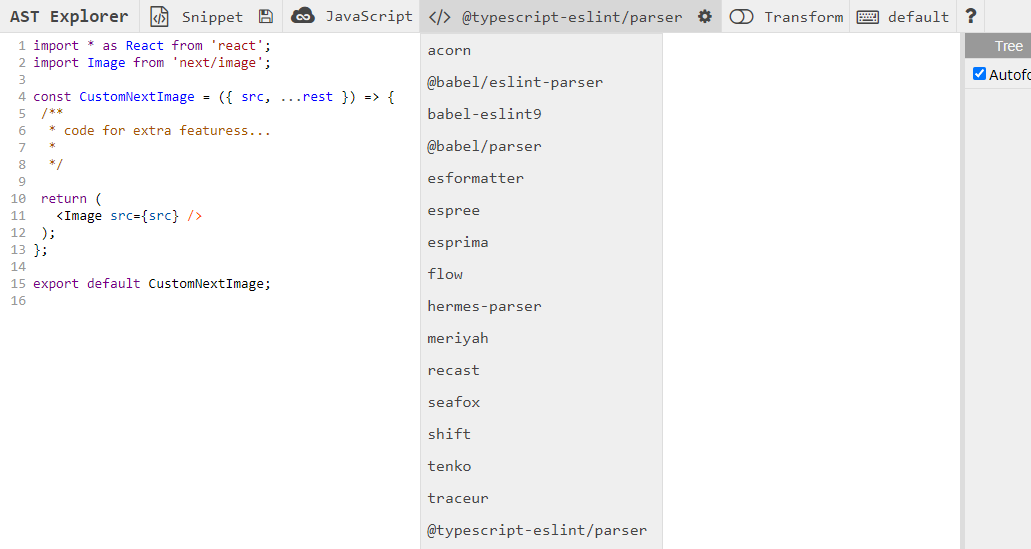
Then paste in the CustomNextImage source:
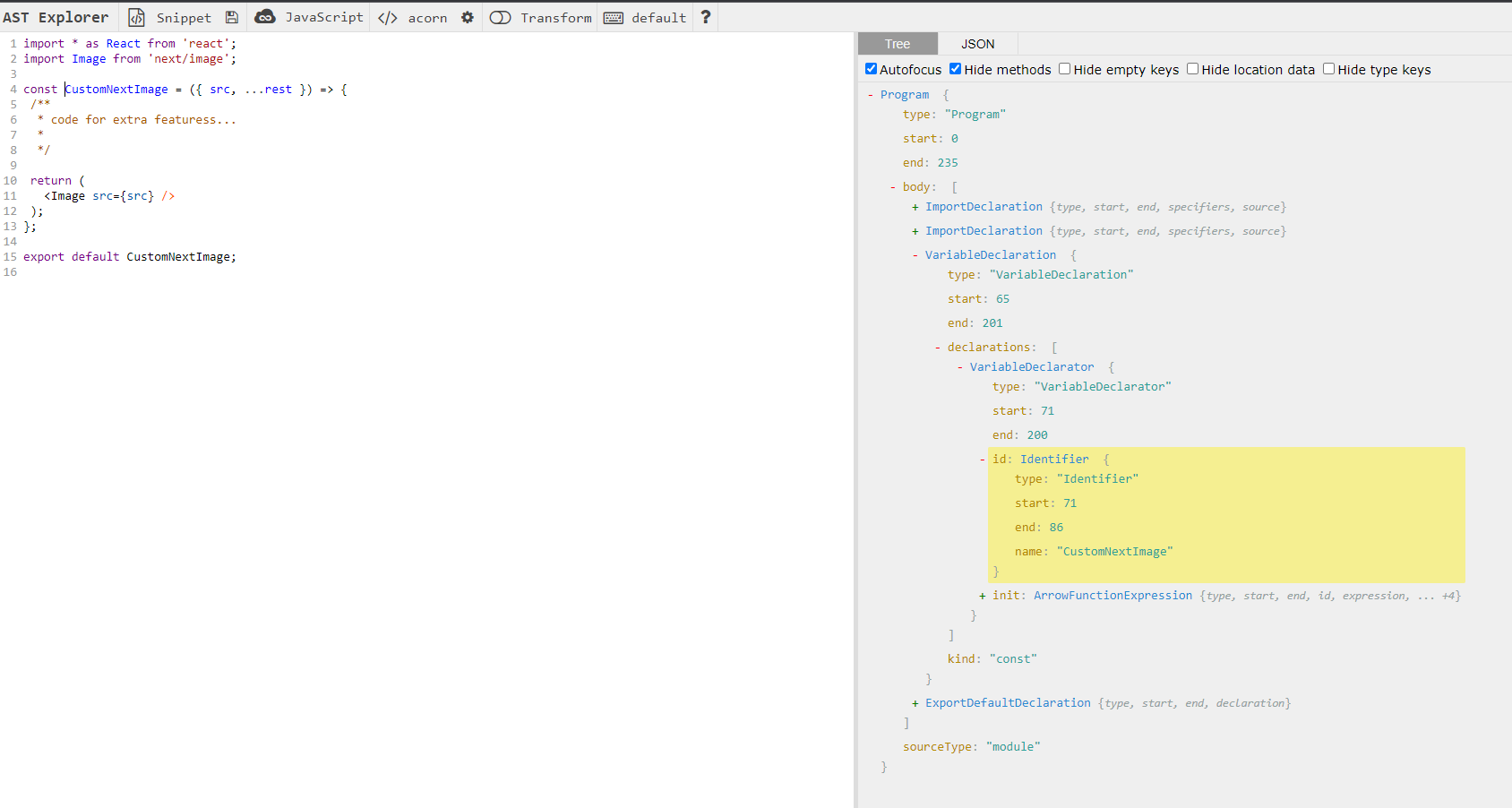
Once the AST is built, ESLint runs a function for each type it encounters as it walks the tree.
Before writing the rule we need to pick the node type to target. In astexplorer, click on the JSX Image tag and the tool will jump to the matching object in the AST.
Clicking near the start of <Image .. highlights a node of type JSXOpeningElement:

Trimmed to the relevant slice:
{
  "openingElement": {
    "type": "JSXOpeningElement",
    "selfClosing": true,
    "name": {
      "type": "JSXIdentifier",
      "name": "Image",
      "range": [176, 181]
    }
  }
}
The JSXOpeningElement node has a name property which itself has a name of "Image". That’s exactly the path our rule will match on to flag direct uses of <Image /> and steer people to CustomNextImage.
Anatomy of an ESLint rule
A rule is an object with two properties: meta and create.
metacarries metadata about the rule (docs URL, category, etc.).createis a function that returns an object whose methods run for each visited node type. Our matching logic lives insidecreate.
// rule template
module.exports = {
  meta: {
    docs: {
      description: '',
      category: '',
      recommended: true,
      url: 'https://url-to-the-docs-of-the-rule.com/',
    },
    fixable: 'code',
  },

  create(context) {
    return {
      // runs for every JSXOpeningElement node
      JSXOpeningElement: node => {},
      // runs for every ImportDeclaration node
      ImportDeclaration: node => {},
    };
  },
};
The full set of options is documented here.
Writing the rule
We register a JSXOpeningElement method on the object returned by create. The node argument is the same shape we saw earlier in astexplorer.
// JSXOpeningElement node
{
  "type": "JSXOpeningElement",
  "selfClosing": true,
  "name": {
    "type": "JSXIdentifier",
    "name": "Image",
    "range": [176, 181]
  }
}
The rule itself comes out short:
// eslint-plugin-custom/src/rules/no-next-image-component.js
module.exports = {
  meta: {
    docs: {
      description: 'Prohibit usage of next/image <Image /> component',
      category: 'HTML',
      recommended: true,
      url: 'https://url-to-the-docs-of-the-rule.com/',
    },
    fixable: 'code',
  },

  create(context) {
    return {
      JSXOpeningElement: node => {
        // bail out if the tag isn't 'Image'
        if (node.name.name !== 'Image') {
          return;
        }

        // report the error
        context.report({
          node,
          message:
            'Do not use next <Image /> component, instead use the <CustomNextImage /> component because ...',
        });
      },
    };
  },
};
There’s not much to it: check that the tag’s name is Image, then emit an error pointing developers at CustomNextImage.
Wiring the rule into the plugin
Finally we expose the rule from eslint-plugin-custom:
// eslint-plugin-custom/src/index.js
module.exports = {
  rules: {
    'no-next-image-component': require('./rules/no-next-image-component'),
  },
  /**
   * 'recommended' config so consumers can do:
   * extends: ['plugin:eslint-plugin-custom/recommended'],
   */
  configs: {
    recommended: {
      plugins: ['eslint-plugin-custom'],
      rules: {
        'eslint-plugin-custom/no-next-image-component': 2,
      },
    },
  },
};
After this, the ESLint CLI will throw an error every time someone reaches for <Image /> directly.
If the rule doesn’t seem to take effect, the usual culprits:
- Re-run
yarn install/npm installin the web project. Changes inside the plugin folder don’t propagate to the consumer until you reinstall. - Reload your editor / IDE. Some extensions are slow to pick up changes in ESLint config.
Next steps
A natural follow-up is a second rule that flags import statements pointing at next/image:
import Image from 'next/image';That way developers see the error the moment they reach for the wrong import. Use astexplorer to figure out which node type maps to that import.
Where to go from here
Hopefully this is a useful intro to writing custom ESLint rules. The one we built here is intentionally minimal: ESLint exposes a much wider surface, including auto-fixable rules that can rewrite source code on save.
Thanks for reading.